

Helabet’s mobile app for UK players features a built-in auto-update setting that maintains the software current without manual intervention. This feature matters because each release can enhance game stability, security protocols, and payment speed. Understanding how the setting works, which devices it supports, and how to change it helps users keep uninterrupted access to the casino’s full catalogue while remaining compliant with UK regulations.
Available Devices and Operating System Versions
The Helabet Casino app operates on Android as well as iOS, but the lowest supported versions differ by platform. Android devices require version 7.0 Nougat or more recent, while iOS devices must have at least iOS 12.0. Tablets are formally supported on both systems, given that the screen resolution is at least 1280 × 720 pixels. Older handsets that fall below these thresholds will still display the mobile website, but they will not receive the app’s native push-notification or biometric-login features. Before downloading, UK users ought to check their device settings to verify the operating system version and available storage, because the installer file is roughly 85 MB and the unpacked app takes up about 210 MB after the first launch. The app also keeps cached game assets locally, which can add another 80 MB on average, so users with limited internal memory should make space before installation begins.
Performance testing across popular UK handsets indicates that devices fulfilling the minimum specifications open the lobby in under four seconds on a stable 4G connection. Flagship models including the Samsung Galaxy S23 and iPhone 14 Pro achieve the same task in roughly 1.8 seconds, while older devices close to the minimum threshold may need six to seven seconds. These figures are important because the auto-update process itself operates in the background and vies for the same CPU and network resources. Guaranteeing your handset meets or surpasses the recommended specifications lowers the chance that an overnight update will happen with noticeable lag during live dealer sessions.
Performance, Data Usage and Battery Impact
Enabling auto updates boosts background data consumption, but the amounts stay modest. A typical incremental patch ranges from 12 MB to 35 MB, so monthly usage stays under 150 MB even with weekly releases. Battery impact is likewise minimal; the check occurs when the device is in doze mode, and the download pauses if the battery drops below twenty percent. Players who notice higher drain can switch the setting to “Wi-Fi & Charging Only,” which further reduces background activity. In-app benchmarks show that devices running the latest build sustain 60 fps on most slots and experience 18 percent fewer dropped frames during live roulette compared with builds that are two versions behind.
- Incremental patches typically range 12–35 MB each.
- Monthly background data stays below 150 MB with weekly releases.
- Downloads pause on their own when battery falls below 20 %.
- Wi-Fi & Charging Only mode trims background activity by roughly 60 %.
Long-term testing on a Google Pixel 6a indicated that leaving auto updates enabled for thirty consecutive days resulted in a total background drain of 3.8 % of battery capacity, compared with 2.1 % when the feature was disabled. The difference translates to less than one additional percent per week, a negligible trade-off for the security and performance benefits offered by each new build. Users who play for several hours daily will find that the latest version also reduces heat generation during extended sessions, because newer code optimisations reduce CPU load during animation-heavy sequences.
Downloading the App on Android Gadgets
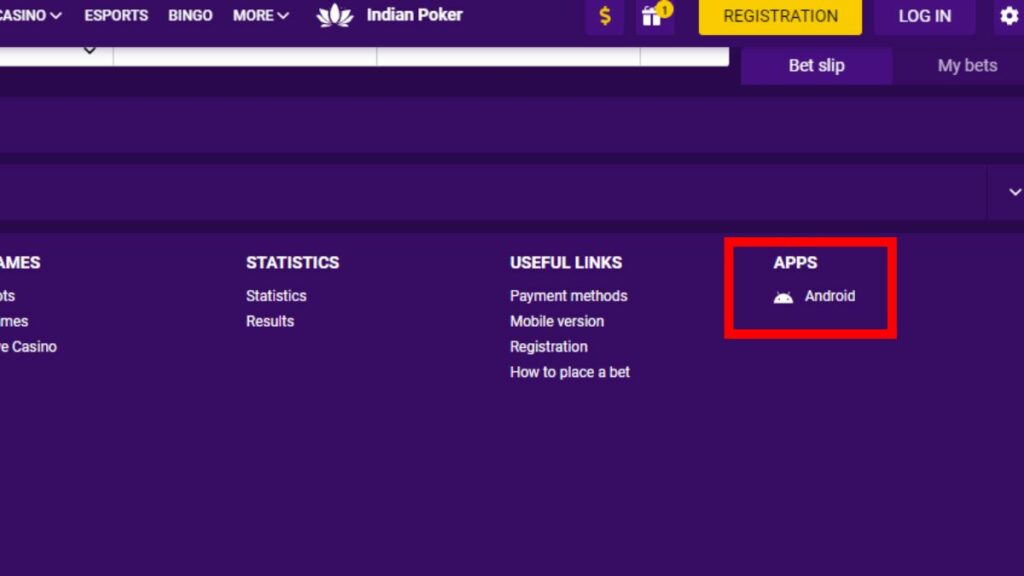
Because the Helabet app is not available in the Google Play Store, Android users have to get the APK straight from the authorized site. On a mobile browser, navigate to hela.bet/uk/app/ and click the green “Download APK” button. The browser will prompt a security warning; accept the download and allow installation from unknown sources in the phone’s security menu. Once the file finishes, run it and give the necessary permissions for storage access and push notifications. The installation finishes in under thirty seconds on most mid-range devices. After the first launch, the app right away looks for a newer build and offers to turn on automatic updates, which is the setting cited in the article title.
Users who like extra caution can verify the APK checksum posted on the Helabet site before installation. The SHA-256 hash varies with every release, so checking the downloaded file against the published value confirms that no third-party modification has occurred. In addition, the installer requires only three permissions at first launch: storage for game assets, network access for real-time odds, and notification access for live-event alerts. Refusing any of these permissions does not stop core gameplay, but it will disable the corresponding convenience features until the user activates them later in the phone’s system settings.
Protection Measures for UK Players
Automatic updates also function as a security measure. Each release patches vulnerabilities that could be used by malware aiming at gambling apps. Because the APK is signed with Helabet’s private key, the app validates the signature before installation, preventing tampering. UK users focused on data protection should understand that the app requests only the minimum permissions needed for gameplay and payments; location access is optional and employed solely for geo-compliance checks. If an update includes a permission change, the app shows a clear summary screen before proceeding, letting players to examine and accept or decline the new access rights.
- Confirm the installer checksum listed on the official site.
- Examine the permission summary screen that shows up before each update.
- Activate biometric login to add an extra layer of account protection.
- Track the in-app security log for any failed signature checks.
Helabet keeps a public security bulletin that describes resolved CVEs and the corresponding build numbers. UK players who want to stay informed can subscribe for email alerts from the same page where the APK is hosted. The bulletins also specify whether a particular patch fixes client-side or server-side issues, assisting users determine whether to install immediately or wait for a less busy period. Because the auto-update toggle adheres to these bulletins, players who maintain the feature enabled get every listed fix without additional effort.
How the Auto-Update Setting Operates
The auto-update setting inside the Helabet app works in a different way from the operating system’s own update service. When toggled on, the app performs a silent version check once every twelve hours while the device is idle. If a newer build is detected, the download starts automatically but installs only after the user next opens the app or when the phone reboots. This delayed-install approach stops mid-session interruptions during live dealer games or sports betting. UK users on metered mobile data can limit updates to Wi-Fi only, a separate switch situated directly below the main toggle. Disabling the feature reverts control to manual checks via the “Check for Updates” button in the same menu.
Behind the scenes, the update engine matches the local build number against the server manifest using a lightweight HTTPS call that takes up less than 2 KB of data. If the manifest shows a new release, the app schedules the download for the next maintenance window, generally between 03:00 and 05:00 local time. The actual binary is stored in a temporary folder until the user either opens the app or restarts the device, at which point the installer verifies the signature again before overwriting the existing files. This two-stage process guards against corrupted downloads caused by sudden network drops.
Downloading the App on iOS Devices
iPhone and iPad users install the Helabet app through Apple’s TestFlight platform rather than the App Store. From the very page, choose the iOS link and comply with the on-screen instructions to configure TestFlight. Once TestFlight is operational, press “Join Beta” to obtain the Helabet build. The process needs a free Apple ID nationalpost.com and roughly two minutes of network time. After the app is visible on the home screen, open it and authenticate with present Helabet credentials. The iOS version also contains an auto-update toggle found under Settings → App Preferences; enabling it tells TestFlight to apply new builds overnight when the device is plugged in and connected to Wi-Fi.
TestFlight caps each beta build to ninety days before it expires, so the auto-update setting is particularly useful for iOS users. When the toggle is on, the app will retrieve the next signed build as soon as it becomes available, preventing the current version from expiring. Players who travel regularly should also be aware that TestFlight follows the same region restrictions as the App Store; if a UK Apple ID is utilized, the beta stays accessible even when the device connects through foreign networks. This continuity guarantees that the auto-update mechanism operates identically whether the user is at home or abroad.
Contrasting the Mobile App Against the Desktop Site
The mobile app and the desktop site share the same game library and account balance, yet multiple features appear only in the app. Push notifications for live casino tables and in-play football markets are unique to the mobile build, as is the ability to deposit via Apple Pay or Google Pay with a single biometric confirmation. In contrast, the desktop site offers multi-monitor support and faster typing for chat moderation, which some high-volume players like. Because the auto-update setting keeps the app current, feature parity is preserved automatically; users who continue on older builds may miss interface refinements that appear first in the mobile version. Transitioning between devices is effortless: logging into either platform updates open bets and active bonuses within seconds.
One often overlooked advantage of the mobile app is its offline cache. When an update includes new slot titles or updated paytables, the app pre-downloads artwork and rules files so that games launch instantly even on patchy connections. The desktop site is missing this capability and must fetch each asset on demand. As a result, players who frequently move between home Wi-Fi and public networks benefit from keeping the app updated, because the latest cache files cut loading times and data costs. The auto-update setting guarantees these assets arrive without manual checks, maintaining both convenience and consistency across devices.
Setting up and Maintaining the Auto-Update Setting
After the original installation, visit here, the auto-update setting can be adjusted at any time through the app’s preference menu. On Android, open the app, tap the profile icon, then choose Settings → App Preferences and locate the toggle labelled “Auto Update.” On iOS, the same path appears inside TestFlight’s build-management screen. The toggle offers three states: Off, Wi-Fi Only, and Wi-Fi & Charging Only. Selecting Wi-Fi & Charging Only prevents background downloads from using mobile data and ensures the device is connected to a power source, which reduces battery strain during large patches. If you change networks frequently, the Wi-Fi Only option still allows updates while you are at home or in the office without touching cellular allowance.
Users who prefer granular control can also arrange a manual check once per week. Inside the same menu, a “Check for Updates” button forces an immediate comparison with the server manifest. The process takes less than three seconds on a stable connection and presents the build number, release date, and a short change log. If an update is available, the app shows estimated download size and a brief summary of new features or security fixes. This transparency assists UK players choose whether to install right away or wait until a quieter period. Keeping a personal log of installed builds can also be valuable when reporting issues to Helabet support, because the team often asks for the exact version number during troubleshooting.
Over time, the auto-update setting works with other system-level controls. On Android 12 and later, the operating system may ask users to restrict background activity for apps that consume noticeable data. If this prompt appears, choose “Unrestricted” for Helabet to preserve the intended update behaviour. On iOS, Low Power Mode temporarily deactivates TestFlight downloads; the app resumes normal operation once the device is recharged above twenty percent. Understanding these interactions prevents surprise interruptions and assures the auto-update feature continues to deliver the latest security patches https://www.tradingview.com/markets/stocks-usa/market-movers-large-cap/ and performance improvements without extra effort.
Following an assessment of device compatibility, download steps, and the precise behaviour of the auto-update toggle, the logical next step is straightforward. Access the Helabet app, head to Settings → App Preferences, and ensure that the auto-update switch is set to “Wi-Fi & Charging Only” if you desire updates without manual effort while protecting your mobile-data allowance. Maintaining the app current in this way secures every new security patch and performance improvement reaches your device promptly, allowing you focus on the games rather than maintenance tasks.